How to Add a Custom Token to MetaMask: Step-by-Step (2026)
— By Tony Rabbit in Tutorials

Learn how to add custom tokens to MetaMask step-by-step for both desktop and mobile. Avoid scams and troubleshoot common issues with this comprehensive gui
How to Add a Custom Token to MetaMask: Step-by-Step (2026)
Introduction: Making Your Crypto Visible
MetaMask is one of the most popular non-custodial cryptocurrency wallets, allowing users to interact with decentralized applications (dApps) and manage their digital assets across various blockchain networks. However, by default, MetaMask does not automatically display every single token you might hold.
This often means that if you've acquired a new or less common token, you'll need to manually add it to your wallet interface to see your balance and manage it. This tutorial will guide you through the process of adding a custom token to MetaMask, ensuring you can always view and interact with your full range of assets.
Why Does MetaMask Not Show All Tokens Automatically?
MetaMask primarily focuses on displaying widely recognized and frequently traded tokens by default. The sheer number of tokens created across various blockchains makes it impractical for the wallet to automatically list every single one.
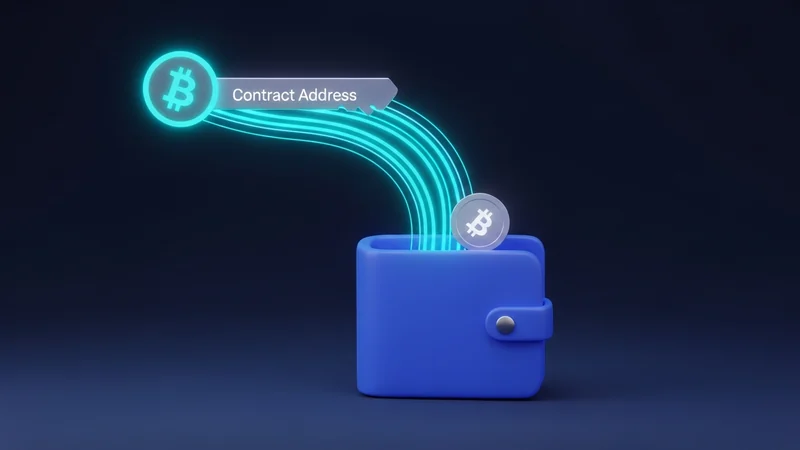
Instead, MetaMask relies on a user-driven approach for less common tokens, requiring you to provide the token's unique contract address. This ensures that you only see the tokens relevant to your holdings and helps maintain a cleaner, more efficient wallet interface.
What You Need Before You Start
Before you begin the process of adding a custom token, ensure you have the following prerequisites in place:
- MetaMask Wallet: Installed and set up on your browser (desktop) or mobile device.
- Correct Network: MetaMask connected to the specific blockchain network where your token resides (e.g., Ethereum Mainnet, BNB Chain, Polygon).
- Token Contract Address: The official and verified contract address for the token you wish to add.
- Internet Connection: A stable internet connection to interact with the blockchain.
Finding the Official Token Contract Address
This is the most crucial step for security and accuracy. Always verify the contract address from a trusted, official source. Scammers frequently create fake tokens with identical names to legitimate ones, using different contract addresses to trick users.
Here are the most reliable places to find a token's contract address:
- Project's Official Website: Most legitimate projects will list their token's contract address prominently on their official website.
- Official Documentation/Whitepaper: The project's official documentation often contains this vital information.
- Reputable Block Explorers: Websites like Etherscan (for Ethereum), BscScan (for BNB Chain), or Polygonscan (for Polygon) are excellent sources. Search for the token by name, and then verify its details.
- DEXTools: You can also find contract addresses for many tokens by searching for their trading pairs on DEXTools, which links directly to block explorers.
Step-by-Step: Adding a Custom Token to MetaMask (Desktop)
Follow these detailed steps to add a custom token to your MetaMask wallet on your desktop browser:
- Open MetaMask. Click on the MetaMask extension icon in your browser toolbar to open your wallet.
- Select the Correct Network. At the top of the MetaMask window, click on the network dropdown menu (it usually says 'Ethereum Mainnet' or another network name). Select the specific blockchain network where your token exists. For example, if your token is on the BNB Chain, select 'BNB Smart Chain'.
- Scroll and Click 'Import tokens'. Scroll down to the very bottom of your asset list within MetaMask. You will see a button labeled 'Import tokens'. Click on it.
- Switch to 'Custom token' tab. On the 'Import tokens' screen, ensure you are on the 'Custom token' tab.
- Paste the Token Contract Address. In the 'Token Contract Address' field, carefully paste the verified contract address you copied earlier.
- Auto-fill Token Symbol and Decimals. Once you paste the contract address, MetaMask will usually automatically populate the 'Token Symbol' (e.g., ETH, BNB, MATIC) and 'Token Decimals' fields. If they don't auto-fill, double-check your contract address and ensure you're on the correct network. If they still don't fill, you may need to manually enter them, which can also be found on the block explorer or project's official site.
- Click 'Add Custom Token'. After verifying the details, click the 'Add Custom Token' button.
- Confirm 'Import Tokens'. You will see a summary of the token you are about to add. Click 'Import Tokens' to finalize the process.
Your custom token should now appear in your MetaMask wallet's asset list, along with any balance you may hold.
On Desktop vs. Mobile: The Flow is Seamless
The process of adding a custom token to MetaMask is remarkably similar whether you are using the browser extension on desktop or the mobile application on your smartphone. The user interface is designed for consistency across platforms.
- Mobile App: Open the MetaMask app. Ensure you're on the correct network. Scroll down on your main wallet screen to find the 'Import tokens' button. The subsequent steps for pasting the contract address and confirming are identical to the desktop version.
- Desktop Extension: As detailed above, click the extension, select the network, then 'Import tokens'.
The key difference is simply navigating the interface - tapping on mobile versus clicking on desktop - but the core steps remain the same.
Understanding Token Details: Symbol and Decimals
When adding a custom token, you'll encounter fields for 'Token Symbol' and 'Token Decimals'. While MetaMask usually auto-fills these, it's helpful to understand what they mean.
- Token Symbol: This is the commonly recognized ticker for the token (e.g., UNI for Uniswap, LINK for Chainlink). It's a short, memorable abbreviation.
- Token Decimals: This number indicates how divisible a token is. For example, if a token has 18 decimals, it means it can be divided into 10^18 (a quintillion) smaller units. This is crucial for displaying the correct balance. Most ERC-20 tokens use 18 decimals, but some can have fewer.
Fees and How Long It Takes
Adding a custom token to MetaMask is a purely local operation within your wallet interface. It does not involve any blockchain transaction.
- No Fees: There are absolutely no gas fees or transaction costs associated with adding a custom token to MetaMask.
- Instant Process: The process is virtually instantaneous. Once you click 'Import Tokens', the token will appear in your wallet immediately.
Troubleshooting: Common Problems and Fixes
While adding tokens is straightforward, issues can arise. Here's a table of common problems and their solutions:
Security and Scams to Avoid
Security is paramount in the crypto space. When adding custom tokens, vigilance is key.
Tips and Best Practices
To ensure a smooth and secure experience when managing your tokens:
- Bookmark Official Sources: Keep bookmarks of official project websites and reputable block explorers for quick and secure access to contract addresses.
- Double-Check Network: Always confirm you are on the correct blockchain network in MetaMask before attempting to add a token or make any transaction. This is a common mistake that leads to tokens not appearing.
- Understand What Adding a Token Does: Remember, adding a token only makes it visible in your wallet. It does not buy the token, nor does it transfer any tokens into your wallet. It simply allows MetaMask to display tokens you already own on that specific network.
- Regularly Update MetaMask: Keep your MetaMask extension or mobile app updated to the latest version to benefit from security patches and new features.
- Use DEXTools for Tracking: After adding a token, you can easily track its price, volume, and trading pairs on DEXTools to stay informed about its market performance.
What Happens After I Add a Token?
Once you successfully add a custom token, it will appear in your MetaMask asset list. If you hold any of that token on the selected network, your balance will be displayed.
You can then send, receive, and interact with this token through MetaMask, including connecting to decentralized exchanges (DEXs) or other dApps that support it. This makes your full portfolio accessible and manageable within your wallet.
Summary: Empowering Your Crypto Management
Adding a custom token to MetaMask is a fundamental skill for anyone navigating the decentralized finance (DeFi) space. It's a simple, free, and quick process that ensures you have a complete view of your digital assets.
By following the steps outlined in this guide and prioritizing security by verifying contract addresses, you can confidently manage your diverse token portfolio within MetaMask. Remember, always stay vigilant against scams and rely on official sources for critical information.
Frequently Asked Questions
How do I add a custom token to MetaMask?
Open MetaMask, select the correct network, then choose Import tokens. Paste the token's contract address, and the symbol and decimals should auto-fill. Confirm to add.
Why isn't my token showing up in MetaMask?
MetaMask doesn't automatically display every token. You usually need to add custom tokens manually using their contract address.
Where do I find a token's contract address?
Always obtain the token's contract address from an official source, such as the project's official website or a reputable block explorer like Etherscan.
What happens if I use the wrong contract address?
Using the wrong contract address could lead to adding a fake token created by scammers, or simply an incorrect token that won't display your actual balance.
Can I add a custom token on MetaMask mobile?
Yes, the process is similar on the MetaMask mobile app. Navigate to your wallet's tokens tab and look for the 'Import tokens' option.
My token shows a zero balance after adding it. What's wrong?
A common reason for a zero balance is being on the wrong network. Ensure you have selected the correct blockchain (e.g., Ethereum, BNB Chain) where your token exists.
Does adding a token to MetaMask mean I've bought it?
No, adding a token to MetaMask only makes it visible in your wallet interface. It does not constitute a purchase of the token.
How can I track my newly added token?
You can track the token's price and trading activity on platforms like DEXTools by searching for its contract address or trading pair.